
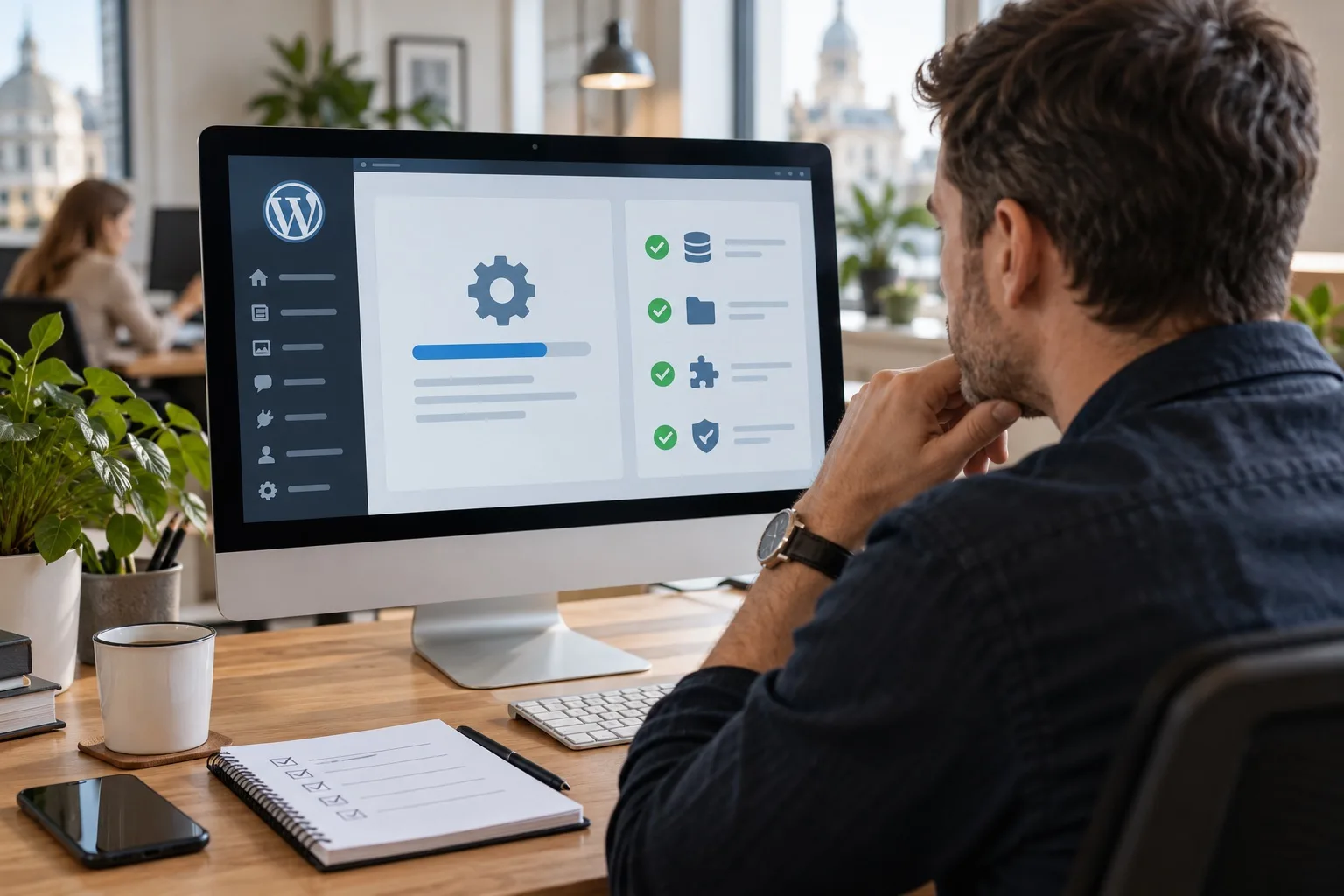
WordPress 6.9 was released on 2 December 2025. The checks below apply to that upgrade and to later major releases. For a live website in 2026, install the latest stable, supported version suitable for your site after compatibility testing, rather than deliberately installing an older release.
WordPress 6.9 illustrates the importance of a careful update process at a time when many UK businesses rely on their websites for enquiries, bookings, online sales, recruitment and reputation. A WordPress update can bring important improvements to security, performance, accessibility and the editing experience, but it can also expose problems in older plugins, custom themes, tracking scripts or integrations that have not kept pace. The aim is not to avoid updating. It is to update in a controlled way, with a clear checklist and a safe route back if something unexpected happens.
For business owners, the most important question is not simply whether WordPress 6.9 is available. It is whether your website is ready for it. The following checks will help you reduce disruption, protect search visibility and give your team confidence before pressing the update button.
Why WordPress 6.9 deserves a careful update plan
WordPress core updates are part of keeping a website secure, stable and compatible with modern web standards. In most cases, updating is the right decision. However, WordPress is rarely working alone. Your site may also depend on a theme, page builder, form plugin, e-commerce plugin, SEO plugin, caching layer, consent management tool, analytics set-up, booking system, CRM connection and hosting environment.
When one part changes, another part may behave differently. A contact form might still appear on the page but stop sending notifications. A product filter might display correctly but fail on mobile. A landing page built with older blocks might load with spacing issues. A checkout journey might work for existing customers but fail for guest users. These are the kinds of issues that make pre-update checks valuable.
For a brochure website, the risk may be limited to layout, forms and SEO elements. For an online shop, membership site or booking platform, a failed WordPress update can affect revenue directly. That is why the safest approach is to test first, update deliberately and check the business-critical journeys afterwards.
Start with a proper staging version of your website
A staging site is a private copy of your live website where updates can be tested before they affect visitors. It should use the same theme, plugins, content structure, PHP version and key hosting settings as the live site. If your staging environment is out of date or only loosely resembles the live website, it will not give you reliable results.
Before installing WordPress 6.9 on staging, confirm that the copy is recent. For active websites, especially e-commerce and booking sites, content and database changes can happen every day. Testing on a version from several months ago may miss current plugin conflicts or template changes.
Your staging checklist should include:
- A recent copy of the live files and database.
- The same active theme and child theme as the live site.
- The same plugin versions currently running on the live site.
- The same PHP version, or the PHP version you plan to use after the update.
- Password protection or no-index settings so staging pages do not appear in search results.
- Clear labelling so your team does not confuse staging with the live website.
Once the staging site is ready, run the WordPress update there first. Then update plugins and themes in a logical order, making notes as you go. If a problem appears, those notes make it much easier to identify the cause.
Check plugin and theme compatibility before updating
Plugin compatibility is one of the most common causes of WordPress update issues. Many plugins are well maintained and tested quickly against new WordPress releases. Others may lag behind, especially if they are niche, heavily customised or no longer actively developed.
Before updating to WordPress 6.9, review your plugins and ask three questions. Is the plugin still needed? Is it actively maintained? Is there a recent compatibility note or update available? This is also a good opportunity to remove unused plugins rather than carrying unnecessary risk into the update.
Pay particular attention to plugins that support important website functions, such as:
- Contact forms, quote forms and lead capture forms.
- E-commerce, subscriptions, payments and delivery options.
- SEO metadata, XML sitemaps, redirects and schema markup.
- Security, firewall and login protection tools.
- Caching, image optimisation and performance plugins.
- Cookie consent and privacy controls.
- Membership, booking, event or learning platform features.
- CRM, email marketing and automation integrations.
The same applies to your theme. If your website uses a bespoke theme, a child theme or a heavily customised page builder set-up, check that its templates still behave as expected after the update. Header navigation, mobile menus, footer layouts, archive pages, single post templates and custom post types are all worth testing.
If a plugin has not been updated for a long time, do not assume it is safe simply because the website still appears to work. A WordPress update can reveal compatibility issues that were previously hidden. In some cases, replacing an old plugin before updating is a better long-term decision than trying to keep it alive.
Create a backup you would actually trust
Backups are essential, but not all backups are equal. A useful backup is complete, recent, stored safely and restorable. Before running a WordPress update, check that both files and database are covered. The database contains posts, pages, settings, orders, users, form entries and plugin configuration. The files include themes, plugins, uploads and custom code.
For business websites, it is sensible to have more than one backup route. Your hosting provider may keep server backups, but you may also use a separate WordPress backup tool or external storage. The key is knowing what exists and how quickly it can be restored if needed.
Before updating, confirm:
- When the latest full backup was taken.
- Whether the backup includes both files and database.
- Where the backup is stored.
- Who has access to restore it?
- Whether a restore has been tested recently.
- How orders, bookings or form submissions will be handled if a rollback is needed.
For e-commerce and high-activity sites, timing matters. If you take a backup at 9am, update at midday and then roll back at 2pm, you may lose orders or enquiries received during that window unless you have a plan. This is why many business-critical updates are scheduled during quieter periods, with extra monitoring in place.
Review editor changes and page layouts
WordPress updates often include improvements to the block editor, site editing tools, design controls and the way content is managed. These changes can be useful for marketing teams, but they may also affect how pages are edited or how blocks display inside templates.
If your team regularly updates landing pages, news posts, case studies or service pages, spend time testing the editor on staging. Open key page types, edit a small piece of content, preview the page and save a test version. Check whether custom blocks, reusable patterns, buttons, columns, galleries, accordions and forms still behave as expected.
Examples of editor-related checks include:
- Can your team still edit service pages without breaking the layout?
- Do reusable blocks, synced patterns or template parts display correctly?
- Are buttons, icons and calls to action aligned properly on desktop and mobile?
- Do image crops, captions and galleries still look consistent?
- Are custom fields or page builder modules still visible and editable?
- Do user roles still have the right level of editing access?
For businesses with multiple content contributors, it is worth preparing a short internal note after the update. If WordPress 6.9 changes the editing workflow in any noticeable way, a few clear instructions can prevent accidental layout changes and reduce support questions.
Test the journeys that matter to your business
After the WordPress update has been tested on staging, do not stop at checking the homepage. A website can look fine at first glance while important features fail in the background. Your post-update testing should reflect how visitors actually use the site.
Start with the journeys that create value. For a professional services firm, that may be a visitor reading a service page, completing an enquiry form and receiving a confirmation email. For an online retailer, it may be product search, basket, checkout, payment confirmation and order email. For a recruiter, it may be job search, application upload and notification delivery.
A practical testing list should include:
- Homepage, main service pages and landing pages.
- Navigation menus, mobile menus and footer links.
- Contact forms, quote forms, newsletter sign-ups and file uploads.
- Checkout, payment, delivery, tax and order confirmation steps where relevant.
- Search, filters, categories and internal links.
- Login, account areas, memberships or gated content.
- Cookie consent, analytics, conversion tracking and marketing tags.
- SEO titles, meta descriptions, canonicals, schema and XML sitemaps.
- Page speed, caching behaviour and Core Web Vitals indicators.
- 404 pages, redirects and important legacy URLs.
Test on more than one device. At minimum, check a current desktop browser and a modern mobile device. If your analytics show that a large share of customers use particular browsers or devices, include those in your checks. For many UK businesses, mobile performance is especially important because users often compare options quickly while travelling, browsing locally or responding to recommendations.
Plan the live update with communication and timing
Once staging has been checked, decide when to update the live website. Avoid peak sales periods, active campaigns, major email sends or times when your team will not be available to respond. If the website supports paid advertising, lead generation or e-commerce, coordinate the update with your marketing calendar.
It helps to define responsibilities before the update starts. One person should know who is taking the backup, who is applying the update, who is testing the site, who can make technical decisions and who should be told if there is an issue. For larger teams, this avoids confusion and shortens response times.
A simple live update process might look like this:
- Confirm the staging update has passed testing.
- Take a fresh live backup.
- Put any high-risk transactions or content changes on hold if needed.
- Run the WordPress update, followed by compatible plugin and theme updates.
- Clear caches carefully, including server, plugin and content delivery caches where relevant.
- Test key journeys immediately.
- Monitor error logs, forms, analytics and search visibility signals over the following days.
Do not rely solely on an automated success message. WordPress may report that the update has been completed, but your business still needs functional testing. The real measure of success is whether customers can still find, use and convert on the website without friction.
Protect SEO performance during and after the update
A WordPress update should not damage your search visibility when handled properly, but technical changes can have SEO consequences. Themes, plugins and performance settings all influence what search engines can crawl, index and understand.
After updating, check that important pages are still indexable and that no accidental no-index settings have been introduced. Review canonical tags, page titles, meta descriptions, structured data, breadcrumbs, internal links and XML sitemaps. If your update includes theme or template changes, compare key pages before and after to ensure headings, body content and calls to action have not been removed or reordered in a way that weakens the page.
Performance is another SEO consideration. If caching settings are reset or a plugin conflict increases load time, users may notice and engagement may suffer. Use the update as a chance to check image optimisation, script loading, unused plugins and mobile layout stability. A faster, cleaner website is usually better for both users and search.
Common mistakes to avoid with a WordPress update
The riskiest updates are usually the rushed ones. Business owners often run into problems when they update directly on the live site without checking compatibility, or when they update core, plugins and theme all at once without recording what changed.
Avoid these common mistakes:
- Updating the live website without a recent, restorable backup.
- Skipping staging because the site looks simple.
- Ignoring old plugins that are no longer maintained.
- Assuming visual checks are enough without testing forms and transactions.
- Forgetting to clear caches after the update.
- Not checking mobile layouts.
- Updating during a campaign, sale or busy enquiry period.
- Failing to monitor the website in the days after the update.
It is also worth avoiding unnecessary panic. If something breaks on staging, that is not a failure. It is exactly what staging is for. Finding the issue before it reaches customers is a sign that your process is working.
When to ask for expert support
Some WordPress updates are straightforward. Others need a more careful technical review, particularly if your website is commercially important, heavily customised or connected to multiple third-party systems. If your site has bespoke functionality, an older theme, complex forms, custom integrations, multilingual content, e-commerce or membership features, professional support can reduce risk.
Giraffe Digital helps businesses approach website maintenance as part of a wider digital strategy, not just a technical task. A WordPress update is a useful moment to look at the health of your website as a whole: whether it is easy to edit, fast to load, clear for users, technically sound for SEO and aligned with your current brand and marketing goals.
The best update process is not the fastest one. It is the one that protects your users, your data and your business-critical enquiries while keeping the website moving forward.
FAQs about updating to WordPress 6.9
Should I update to WordPress 6.9 straight away?
In most cases, you should plan to update, but not necessarily the moment the notification appears. Check plugin and theme compatibility, test on staging and make sure you have a reliable backup first. Security releases may need faster action, while larger feature updates are usually better handled with a planned process.
Will the WordPress update break my website?
Many websites update without visible issues, but there is always a risk of conflicts with plugins, themes, custom code or hosting settings. The best way to reduce that risk is to test the update on a staging site before applying it to the live website.
Do I need a staging site for a small business website?
Yes, it is still recommended. Even a small website may depend on forms, tracking, SEO plugins and custom layouts. A staging site lets you test safely without affecting visitors or enquiries.
What should I test after updating WordPress?
Test the homepage, service pages, forms, navigation, mobile layouts, checkout or booking journeys, analytics, cookie consent, SEO settings and performance. Focus on the actions that matter most to your customers and your business.
How often should WordPress plugins be reviewed?
Plugins should be reviewed regularly, not only during major WordPress updates. Remove plugins you no longer use, replace unsupported tools and keep active plugins updated in line with a sensible testing process.
Clear next steps before you update
If your dashboard shows an available WordPress update, treat it as a prompt to review your website properly. Start by listing your active plugins, confirming your backup position and checking whether you have a reliable staging environment. Then test the update away from the live site, record any issues and proceed only when the key journeys have been checked.
If you are not confident that your current set-up can be updated safely, get support before making changes. It is far easier to plan a careful WordPress update than to repair a broken website during working hours while customers are trying to use it.
For UK businesses, the goal is simple: keep WordPress secure and current while protecting the enquiries, sales and trust your website is built to generate. With staging, backups, compatibility checks and structured post-update testing, WordPress 6.9 can be handled as a positive maintenance step rather than a stressful gamble.
For the release background, see the WordPress 6.9 release announcement.