
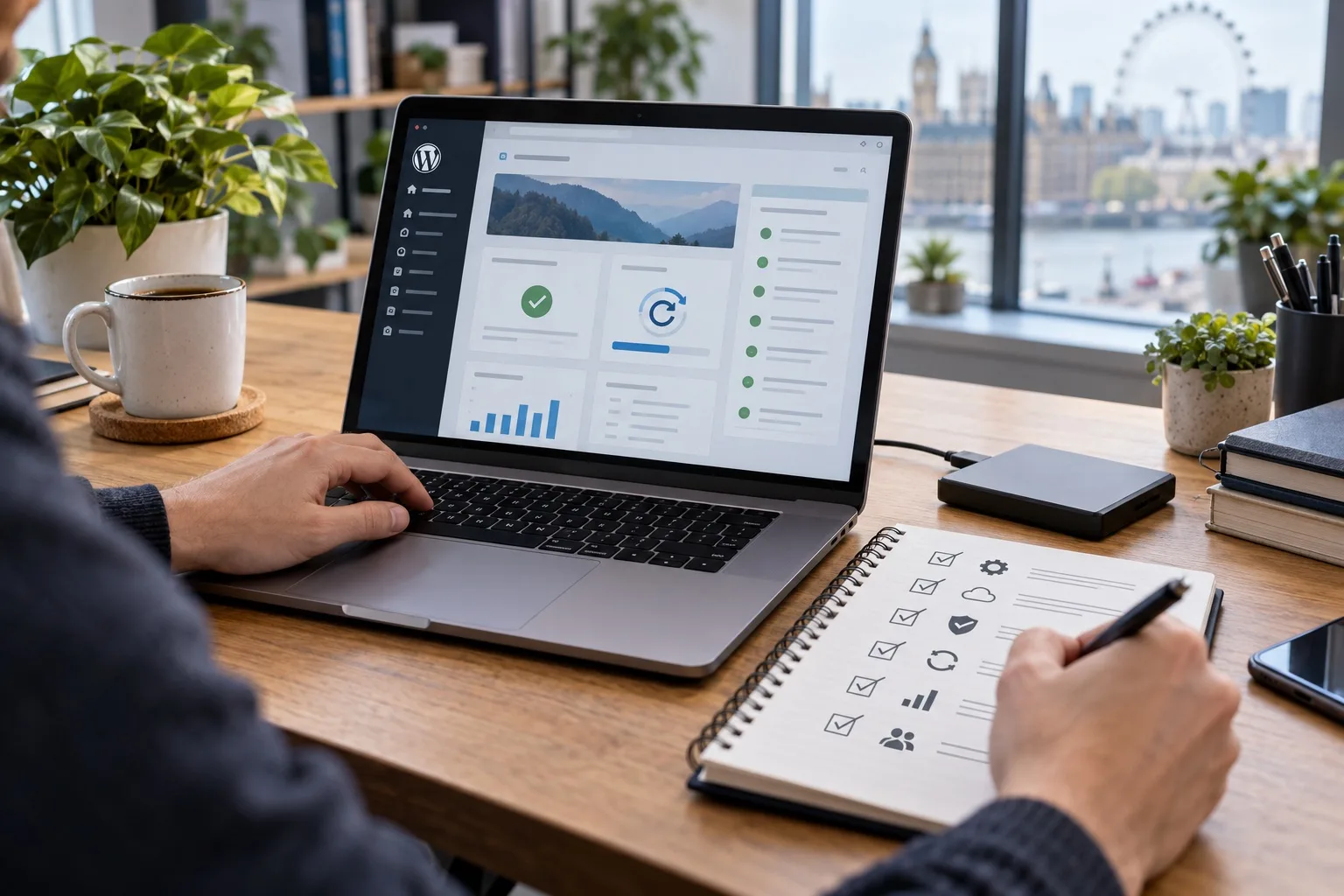
Your WordPress website is not a one-off project. It is a live business asset that needs regular care, especially as security risks, browser expectations, search behaviour and customer expectations continue to evolve quickly in 2026. For UK business owners, reliable WordPress maintenance helps protect enquiries, rankings, brand trust and day-to-day operations.
Whether your site is a brochure website, an e-commerce shop, a membership platform or a lead generation hub, the fundamentals are the same: keep software updated, back up properly, test before changing anything important, monitor security, review plugins and measure performance. The checklist below is designed to help you understand what should be happening behind the scenes and why it matters.
Why WordPress maintenance matters in 2026
WordPress remains one of the most widely used content management systems in the world, which makes it flexible and well supported, but also a frequent target for automated attacks. Most problems do not start with WordPress itself; they usually come from weak passwords, neglected plugins, outdated themes, insecure hosting settings or poor update processes.
In 2026, maintenance is also about more than avoiding downtime. Google’s Core Web Vitals now include Interaction to Next Paint, commonly known as INP, so real-world responsiveness is more important than ever. Visitors expect pages to load quickly on mobile connections, forms to work first time and checkout journeys to feel smooth. A slow or unreliable website can quietly reduce leads long before anyone reports a visible issue.
Good maintenance gives your business confidence. It means you know when updates are applied, where backups are stored, who has administrator access, whether your forms are sending correctly and how your site is performing across key pages.
Your essential WordPress maintenance checklist
The right maintenance rhythm depends on the size and complexity of your website, but the following tasks should be part of every sensible plan.
1. Update WordPress core safely
WordPress core updates include security patches, bug fixes, performance improvements and new features. Before updating WordPress, review compatibility with your themes, plugins and hosting environment. Use the latest stable, supported release that has been tested with your website. Security-focused improvements are welcome, but updates should still be managed carefully rather than applied blindly to a live, business-critical website.
For straightforward websites, minor security releases can often be applied quickly. Larger sites, e-commerce platforms and websites with custom functionality should be tested in a staging environment first. After updating, check your homepage, navigation, forms, checkout, account areas, search, tracking and any integrations with email marketing or CRM tools.
2. Keep plugins updated and relevant
Plugins are one of WordPress’s greatest strengths, but they are also one of the most common maintenance risks. A plugin may become vulnerable, be abandoned by its developer, duplicate another plugin’s functionality, or no longer be needed because your website has changed.
Review plugins at least monthly and ask clear questions: is the plugin still active, recently updated and compatible with your version of WordPress? Does it have a clear purpose? Is there overlap with another plugin? Does it slow the site down? Does it collect or process personal data?
Where possible, avoid installing several plugins to solve small cosmetic issues. Each additional plugin increases the maintenance burden and can create conflicts during updates. A leaner plugin stack is usually faster, safer and easier to manage.
3. Audit your theme and child theme
Your WordPress theme controls much of the site’s visual structure and front-end behaviour. In 2026, many businesses are considering whether to continue with a classic theme, move towards block-based editing or rebuild using a more modern design system. There is no single right answer, but your theme should be actively maintained and suitable for your business needs.
If your website uses a child theme, check whether custom code is documented and whether it still works with current WordPress releases. Look for outdated template overrides, hard-coded scripts, unused page builder elements and styling that causes layout shifts on mobile devices.
Theme checks should include desktop, tablet and mobile views. Pay particular attention to menus, calls to action, contact forms, image galleries, accordions, embedded maps and any interactive components.
4. Run backups that can actually be restored
A backup is only useful if it is complete, recent and restorable. Many businesses assume backups are in place but have never tested whether they can recover the site quickly. Your maintenance process should include both database backups and file backups, including uploads, themes, plugins and custom code.
Backups should be stored offsite rather than only on the same server as the website. If the server fails or is compromised, a same-server backup may be unavailable or infected. For busy websites, such as e-commerce or booking sites, backups may need to run more frequently because new orders, enquiries and user accounts are created throughout the day.
At least quarterly, perform a restore test in a staging or development environment. This confirms that the backup process works and helps you understand how long recovery would take if something went wrong.
5. Use a staging site before major changes
A staging site is a private copy of your live website used for testing updates, design changes, plugin replacements and new functionality. It is one of the most valuable tools in WordPress maintenance because it reduces the risk of breaking the live site.
Use staging for major WordPress core releases, PHP version changes, theme updates, e-commerce updates, significant plugin changes and new integrations. After testing, you can plan the live update at a sensible time, ideally outside your busiest enquiry or sales periods.
Staging sites should be blocked from search engine indexing and protected from public access. They should also be refreshed regularly so testing reflects the current live website rather than an outdated copy.
Security checks for UK business websites
Website security is not only an IT concern. It affects customer trust, GDPR responsibilities, search visibility and brand reputation. While no website can be made completely risk-free, regular security maintenance significantly reduces exposure.
Review user accounts and permissions
Administrator access should be limited to people who genuinely need it. Remove old staff accounts, supplier accounts and temporary logins as soon as they are no longer required. Use individual accounts rather than shared logins so activity can be tracked properly.
Where possible, enable two-factor authentication for administrators and editors. Passwords should be long, unique and stored securely. Avoid using admin, info or the business name as usernames because automated bots often try these first.
Check malware scanning and firewall protection
A good WordPress maintenance plan should include regular malware scans and some form of web application firewall protection. These tools help identify suspicious files, block common attack patterns and alert you to unusual behaviour.
Security alerts should be reviewed by someone who understands the site. Not every alert is an emergency, but ignoring repeated warnings can allow a small issue to become a major clean-up project.
Confirm SSL, DNS and domain settings
Your SSL certificate should be valid, correctly configured and automatically renewed where possible. Visitors should not see browser warnings, mixed content errors or insecure form submissions. These issues can damage trust and reduce conversions.
It is also worth checking domain renewal dates, DNS records and access to the account where your domain is managed. Do not rely on one person’s inbox for critical renewal reminders. Keep ownership details accurate and ensure the business has control of the domain, DNS and hosting records.
Performance testing and Core Web Vitals
Performance is an important part of WordPress maintenance because websites tend to slow down over time. New images are uploaded, plugins are added, scripts accumulate and pages become heavier. Regular testing helps catch these issues before they affect leads or rankings.
Measure real pages, not just the homepage
The homepage is important, but it may not be the page where people first arrive. Test your key service pages, landing pages, blog posts, product pages and contact page. These are often the pages that influence enquiries and sales.
Pay attention to Largest Contentful Paint, Cumulative Layout Shift and Interaction to Next Paint. In practical terms, this means checking how quickly the main content appears, whether elements move around while loading and whether the page responds promptly when someone taps, clicks or types.
Optimise images and media
Large image files are still a common cause of slow WordPress websites. Images should be correctly sized, compressed and served in modern formats where appropriate. Avoid uploading large camera-original files directly to your media library and relying on the website to do all the work.
Video should usually be embedded or hosted carefully rather than uploaded in a way that makes pages unnecessarily heavy. If a video is central to a landing page, test it on mobile as well as desktop.
Review caching, scripts and third-party tools
Caching can improve load times significantly, but it needs to be configured around your website’s functionality. E-commerce baskets, logged-in areas and dynamic forms may need special handling. After changing cache settings, test the parts of the website that rely on real-time information.
Third-party scripts can also affect performance. Cookie banners, analytics, live chat, review widgets, advertising pixels and embedded social feeds may all add weight. Keep only the tools that provide clear value and load them responsibly.
Content, SEO and conversion maintenance
Technical maintenance keeps the website stable, but business-focused maintenance should also look at the content and user journey. A secure, fast website still needs to communicate clearly and support your commercial goals.
Check forms, calls and tracking
Test contact forms, quote forms, newsletter sign-ups and booking forms regularly. Confirm that submissions reach the right inbox or CRM, autoresponders work and spam filtering is not blocking genuine enquiries. If phone numbers are trackable, check they display correctly and route properly.
Analytics and conversion tracking should also be reviewed after major updates. A website can appear healthy while silently losing data because a tag, consent setting or integration has stopped working.
Refresh key content
Review your main service pages and location pages to ensure they reflect your current offer, audience and positioning. Outdated team information, old awards, expired promotions and inaccurate opening hours all weaken trust.
For SEO, look for pages with falling traffic, thin content, duplicate intent or outdated advice. Updating existing content can often be more effective than continually publishing new posts without maintaining older assets.
Check accessibility basics
Accessibility should be part of routine website care. Check colour contrast, keyboard navigation, visible focus states, descriptive link text, image alt text and form labels. These improvements support a wider range of users and often improve the overall quality of the website experience.
A sensible maintenance schedule
A good WordPress maintenance plan separates frequent checks from deeper reviews. This keeps the workload manageable and ensures important tasks are not forgotten.
Weekly checks
- Confirm the website is online and key pages load correctly.
- Check forms, enquiries and e-commerce functionality where relevant.
- Review security alerts and uptime notifications.
- Check that backups have completed successfully.
Monthly checks
- Apply tested WordPress core, plugin and theme updates.
- Review plugin health, licences and compatibility.
- Run performance tests on key pages.
- Check user accounts and remove unnecessary access.
- Review analytics for unusual traffic, enquiry or conversion changes.
Quarterly checks
- Test backup restoration in a staging environment.
- Review hosting, PHP version and server resource usage.
- Audit content accuracy across priority pages.
- Check Core Web Vitals and mobile usability trends.
- Review security settings, firewall rules and administrator permissions.
Annual checks
- Review whether the website still supports your business strategy.
- Assess theme longevity and technical debt.
- Check domain ownership, renewal processes and DNS documentation.
- Review privacy notices, cookie information and data capture points.
- Plan larger design, SEO or functionality improvements for the coming months.
Common warning signs your WordPress site needs attention
Some maintenance issues are visible, while others are easy to miss. Warning signs include slow page loading, unexpected layout changes, broken forms, plugin update errors, admin dashboard warnings, sudden traffic drops, spam user registrations, browser security warnings or customers reporting problems that your team cannot reproduce.
You should also be cautious if updates have not been applied for several months, no one can explain the backup process, the website relies on an unsupported theme, or your business does not know who has administrator access. These are not always emergencies, but they should be addressed before they become expensive disruptions.
FAQs about WordPress maintenance
How often should a WordPress website be maintained?
Most business websites should be checked weekly, updated monthly and reviewed in more depth quarterly. High-traffic, e-commerce or membership websites usually need more frequent monitoring because changes to orders, users and payments happen continuously.
Can I just turn on automatic updates?
Automatic updates can be useful for minor releases and low-risk plugins, but they are not a complete maintenance strategy. Updates can occasionally create conflicts, so you still need backups, monitoring, testing and a clear rollback process.
What is the difference between a backup and a staging site?
A backup is a saved copy of your website that can be restored if something goes wrong. A staging site is a separate testing version of your website where changes can be tried before they go live. Both are important, but they serve different purposes.
Does WordPress maintenance help SEO?
Yes. Maintenance supports SEO by improving site speed, reducing downtime, fixing broken functionality, keeping content accurate and protecting the site from security issues. It does not replace an SEO strategy, but it provides the technical foundation that SEO relies on.
What should I do before a major WordPress update?
Take a full backup, create or refresh a staging site, update plugins and themes in a controlled order, test key user journeys and check analytics, forms and integrations afterwards. For complex websites, plan the update rather than making changes during a busy trading period.
Clear next steps for your business
If your WordPress website is important to your enquiries, sales or reputation, maintenance should be treated as an ongoing business process rather than an occasional technical task. Start by documenting your current setup: hosting, domain access, administrators, plugins, theme, backups, security tools and key integrations.
Then prioritise the basics: confirm backups work, remove unnecessary admin access, update safely, test forms and measure performance on your most important pages. Once the essentials are under control, you can move on to deeper improvements such as content updates, Core Web Vitals optimisation and better conversion tracking.
Giraffe Digital helps UK businesses keep WordPress websites secure, stable and commercially useful. If your site has become difficult to manage, feels slow, has outdated plugins or needs a more structured maintenance approach, the next step is a professional review of what is working, what is risky and what should be improved first.