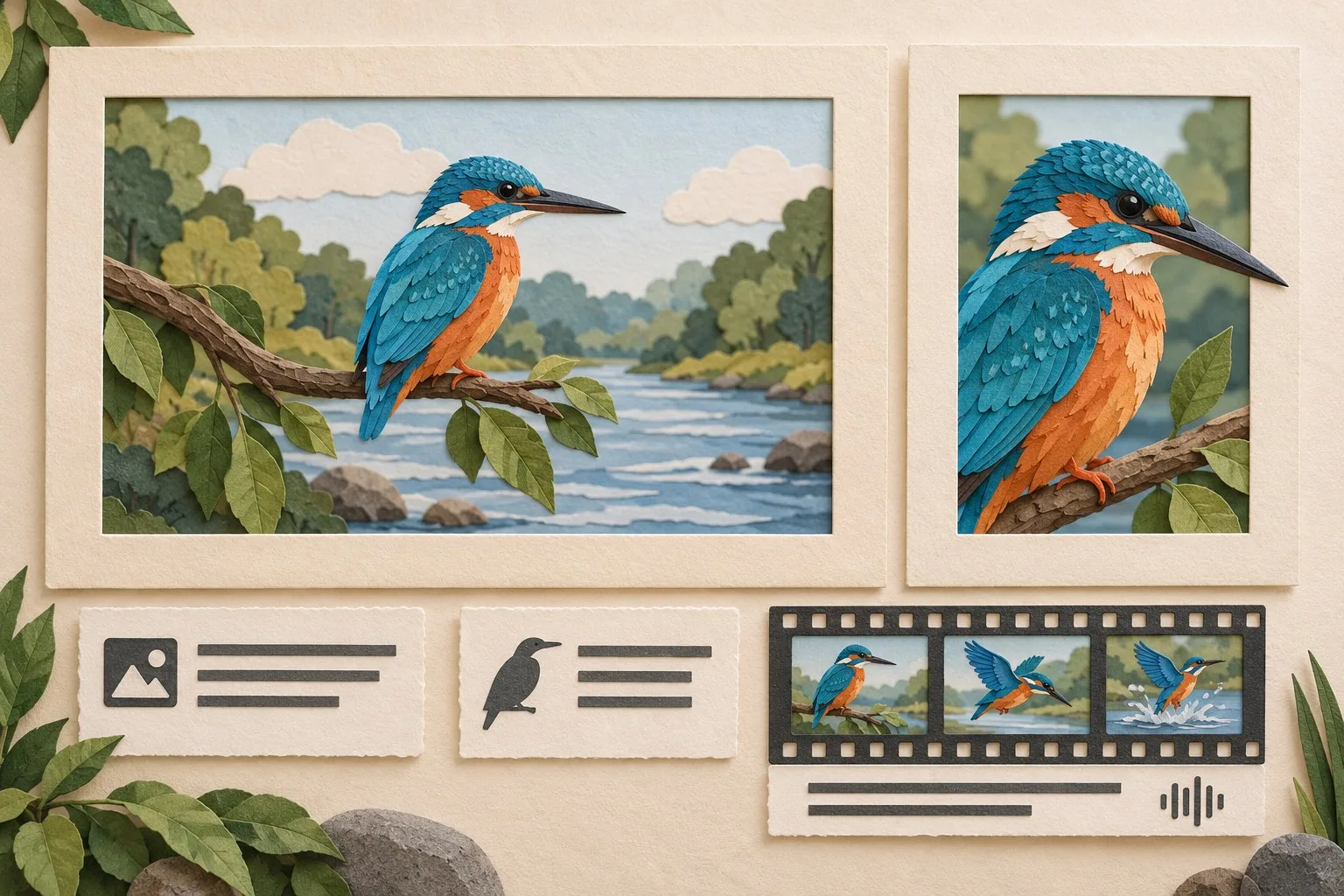
A website image should communicate something useful, load at an appropriate size and remain understandable when its visual content cannot be seen. Video requires the same planning, with additional attention to sound, timing and visual information.
Choose the image for its purpose
Decide what the visual contributes before choosing a format or writing alternative text. A product photograph, decorative background, chart and image-only button have different purposes. Select a composition that supports the page's actual subject rather than repeating generic technology imagery.
Keep a record of ownership, permitted use, the original asset and any approved crops. Review whether a stock or generated image could imply an actual client, product or result that it does not represent. Describe conceptual illustrations honestly.
Write alternatives in context
For an informative image, describe the essential information it contributes to this page. Avoid listing every visible object. An image used as the only content of a link or button needs an alternative that communicates the destination or action.
For a purely decorative image, use an empty alternative, alt="", rather than omitting the attribute. A complex diagram needs a short identifying alternative and an accessible explanation of the important relationships or data nearby. Do not squeeze an entire report into the alternative text.
For example, a delivery-area diagram could have a short description identifying its purpose, followed by readable coverage information. The same illustration used only as decoration would require a different treatment. Context determines the appropriate answer.
Separate resolution from composition
Resolution switching supplies different pixel sizes of the same visual. The srcset and sizes attributes can help a browser choose a suitable image for the layout. Keep the sizing information aligned with the actual space the image occupies.
Art direction changes the composition for different layouts. A wide scene may need a closer crop to keep its subject understandable on a phone. The picture element can select suitable sources while retaining a fallback image. Review the crop itself rather than assuming a smaller file preserves the meaning.
Export and reserve the right space
Raster images contain a fixed pixel grid. Vector artwork describes shapes and can suit logos or simpler diagrams at different display sizes. Photographs usually require raster formats; a vector file does not make detailed photographic content automatically efficient.
Compare the exported detail, dimensions and file size in the actual layout. A camera's original resolution is not necessarily the right web export. For SVG artwork, check the viewBox coordinate area and the displayed container so scaling and cropping behave as intended.
Reserve image space with appropriate dimensions or aspect-ratio handling to reduce layout movement. Lazy loading can suit images further down a page, but should not unnecessarily delay the prominent image needed immediately. Test the finished page on a constrained connection.
Keep web and print specifications distinct
A colour value used on a website does not fully specify how ink will appear on paper or another material. Obtain the printer's actual requirements for profiles, colour handling, resolution and artwork preparation. Check an appropriate proof before producing a large run.
Keep web and print exports identifiable within the asset library. Record the approved version and intended use, so a compressed website thumbnail is not accidentally supplied for a large printed sign.
Plan accessible audio and video early
Review what information comes from speech, meaningful sounds and visual action. Captions should represent speech and the non-speech audio needed to understand the content, synchronised with the recording. Check automatically generated captions for names, terminology, timing and meaning.
A transcript can provide readable access to spoken content. Visual information may also need audio description or another appropriate alternative, depending on the media and applicable requirements. Plan these needs before recording so essential demonstrations are explained clearly.
Test the actual player for keyboard operation, controls and available accessibility features. Do not assume that adding a caption file resolves every barrier in the recording or its delivery interface.
Review publication and later changes
Use the relevant platform's alternative-text facilities when distributing images socially, and inspect the published result. Website markup and social publishing interfaces do not offer identical controls.
On YouTube, editing a video's title or description is different from uploading a replacement recording. A new upload has a new URL. Review existing editing options before removing an item, preserve the original files and update owned embeds if a new recording is necessary. Deletion is permanent.
Media publication checklist
- Confirm purpose, rights and honest presentation.
- Write suitable alternatives and longer explanations where needed.
- Review image resolution, mobile crops and reserved space.
- Check captions, transcripts, visual information and player use.
- Verify published assets and keep an approved source version.
The website performance guide explains loading priorities. Our accessibility review guide covers the surrounding interface.