A useful form error message helps a person recover and complete an enquiry. It explains what needs attention, shows where the problem is and gives a workable next step. A vague warning such as “Invalid input” leaves the visitor guessing, while an aggressive message can make an ordinary typing mistake feel like a failure.
Error messages are part of the customer journey, not a final piece of interface decoration. Their wording, placement and technical behaviour determine whether someone can recover without losing information or submitting twice. Designing them well begins with understanding the errors a real customer can encounter.
Prevent avoidable errors through clearer fields
Review the form before writing its error messages. Does each field explain what information is needed? Are required fields identified? Are examples helpful without implying that only one narrow format is acceptable? Many errors begin with an instruction that the visitor cannot interpret.
Ask whether every field is necessary at the enquiry stage. A customer seeking an initial conversation may not know their exact budget, project specification or preferred delivery date. Requiring precise answers too early can encourage invented information or make the person abandon the form.
Use a suitable input type and sensible formatting support where possible. However, do not assume that the browser's default validation message explains your business requirement. Test what people actually see on the devices and browsers they use.
If a field has a genuine restriction, explain it before the customer encounters the error. An attachment size limit is easier to understand alongside the upload control than after a lengthy upload attempt.
Distinguish a user correction from a service failure
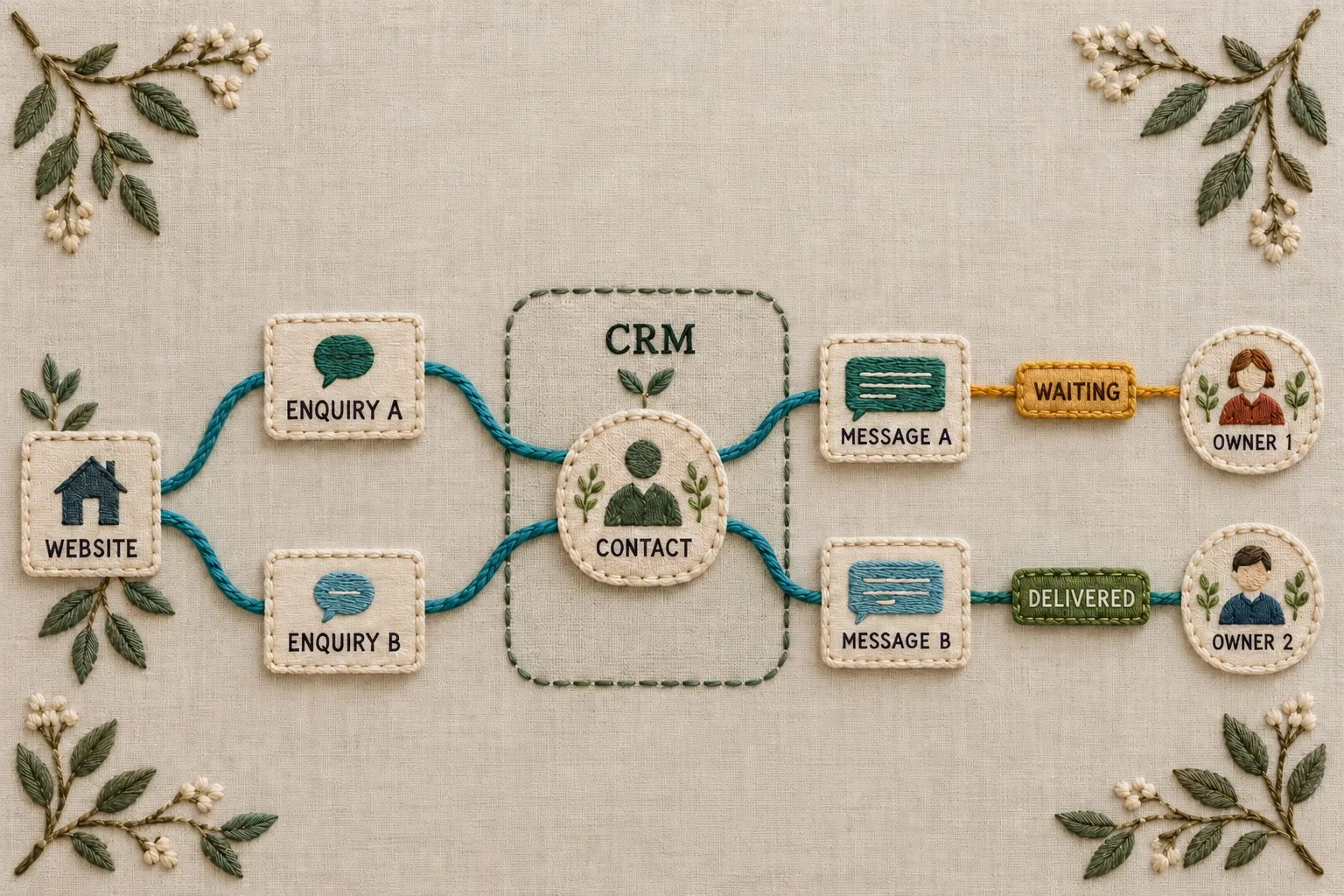
A missing email address requires the customer to enter information. A server outage requires the business to restore the service or provide another route. These are different situations and should not receive the same generic warning.
Distinguish a problem with the visitor's input from a problem with the service. This prevents an enquiry form telling customers to correct something they cannot fix. The accessible forms and errors guide explains clear wording, recovery and confirmation.
Use field errors for specific input problems. Use a service-level message when the request cannot be processed because the website or connected service is unavailable. Explain whether the information has been saved and what the person can do next, based on the system's actual state.
Avoid telling visitors to try again indefinitely. If the business can offer a telephone or email route, make it available where appropriate. Ensure that the alternative works and leads to someone able to handle the enquiry.
Write a specific instruction for each error state
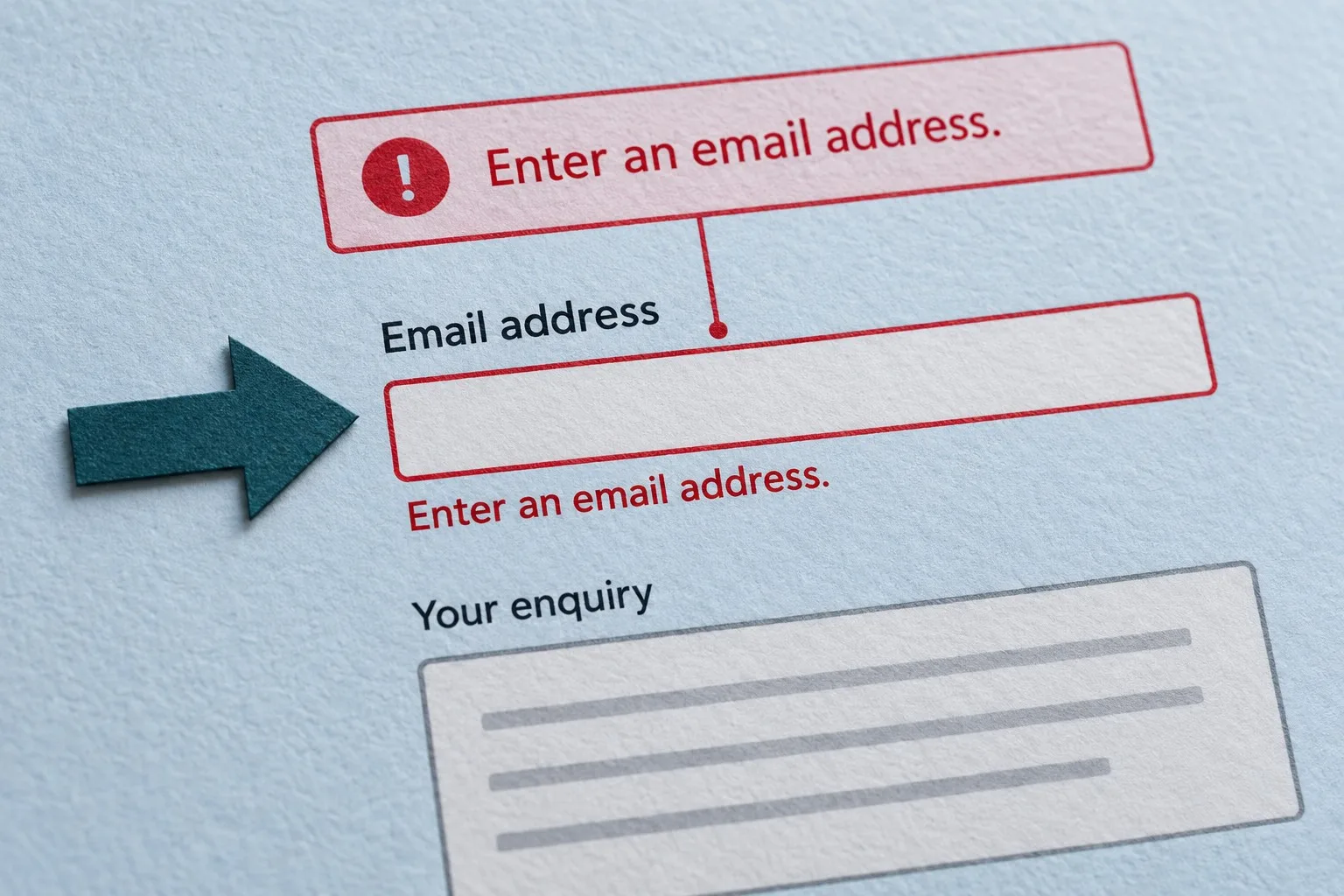
Identify why a value is unacceptable and tell the person how to correct it. “Enter an email address” is appropriate when the field is empty. A different message may be needed when the entry appears incomplete, such as “Enter an email address including an @ symbol”. The message should match the validation that actually runs.
Keep examples relevant. For a project description field, “Tell us which service you are interested in” may be more useful than a character-count warning if the form requires meaningful context. If a technical length limit exists, explain it clearly and consider whether the limit is sensible.
Use the label's language in the message. If the field is called Telephone number, an error referring to Contact identifier adds confusion. Consistent terms let the customer connect the instruction with the place they need to act.
Describe the correction without blame. There is rarely a need for “You entered an invalid value” when a short instruction will do. A calm, direct message supports recovery and suits a professional service enquiry.
Place errors where people can find and understand them
Show the specific error near the relevant field. For a longer form, an error summary can help visitors locate all outstanding corrections after submission. Connect the summary to the individual fields and test the route with the keyboard. Our form error guidance covers both local messages and summaries.
Make the summary entries link to the affected controls where appropriate. Keep their wording consistent with the field messages. The person should not have to work out whether two differently phrased warnings describe the same problem.
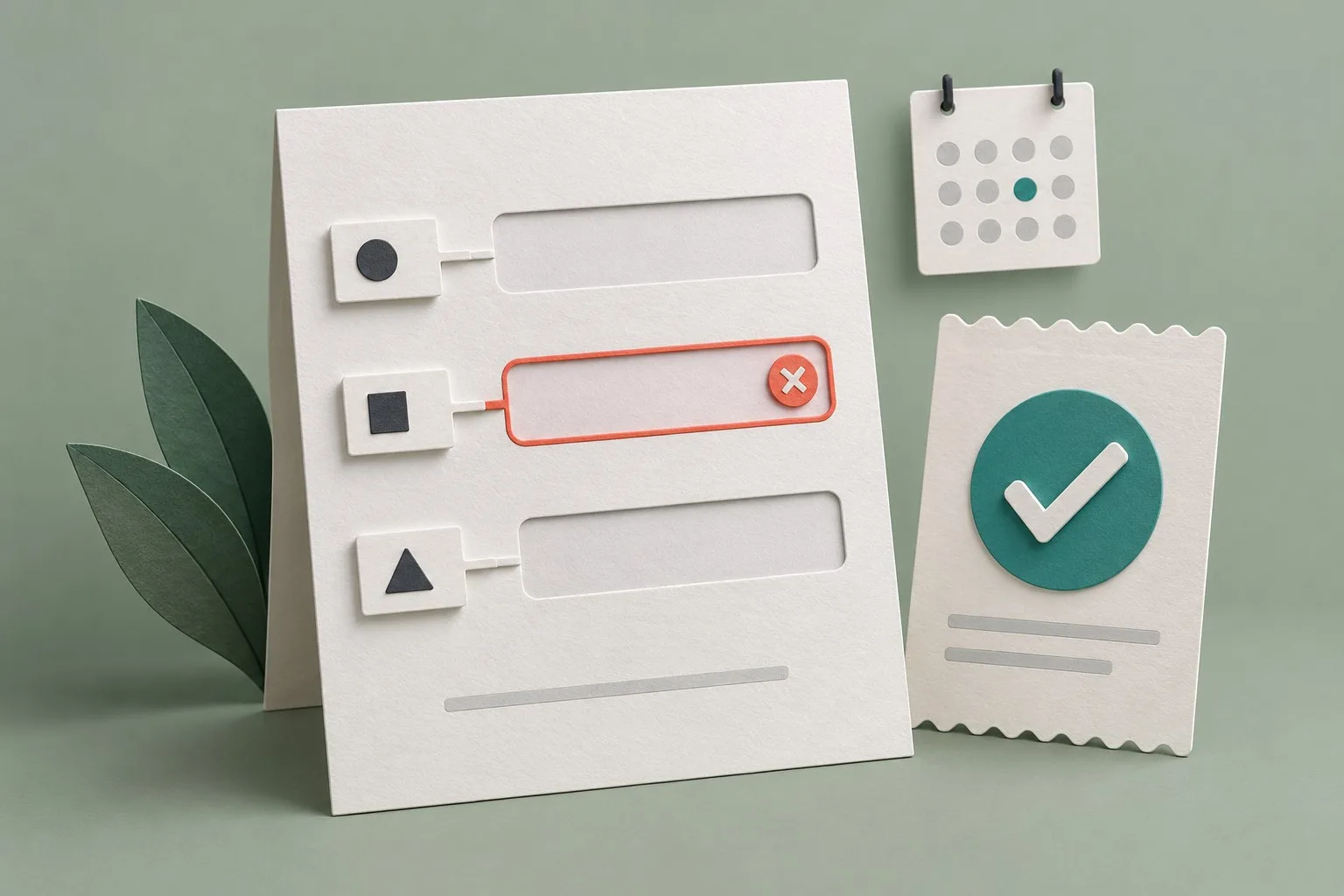
Do not rely on colour alone. A coloured border can support an error state, but the text must explain it and the implementation must associate the message with the field. Work with the developer to ensure that keyboard and assistive technology users can identify the problem.
Check the reading order and focus behaviour after submission. The form should clearly identify errors and let the visitor reach the relevant fields without trapping them or unexpectedly taking them elsewhere. Test the full interaction rather than judging a static screenshot.
Choose validation timing carefully
A message that appears while someone is still typing can be premature. A visitor entering a telephone number may briefly create a value that looks incomplete. Showing a warning at every keystroke can make the interface feel impatient and distracting.
Decide which checks are useful during entry and which belong after the person leaves a field or submits the form. Use immediate feedback when it helps, such as a clear attachment constraint, without assuming that constant validation is always better.
Keep server-side validation authoritative. Browser checks can improve the experience, but the business must also validate submitted information on the server. The messages returned by the server should remain understandable and should not expose internal technical details.
If a remote check is needed, show a clear pending state and handle failure. A postcode lookup or availability check may be unavailable even when the person's entry is valid. Give a sensible manual route where the business process supports one.
Preserve information and make the submission state clear
After an error, retain information that can safely remain in the form. Asking someone to retype a long description because one field was missing creates unnecessary work. For attachments or sensitive fields, explain any required re-entry and design the recovery deliberately.
Distinguish a request that failed before saving from one that was saved but whose confirmation could not be displayed or emailed. A generic failure message can cause the visitor to submit again when the business already has the enquiry.
Use a clear confirmation once the request has been accepted. Explain the next step and give only response expectations the business can support. A confirmation should not merely indicate that a button was clicked.
Work with the developer on repeat submissions and retries. Disabling a button temporarily may help the interface, but it does not by itself prevent duplicates across refreshed pages or network retries. The server's handling and the message shown to the visitor must agree.
Test realistic mistakes and accessibility together
Create a test list covering empty required fields, incomplete contact details, unsupported uploads and interrupted submissions. Include entries that are valid but unusual, such as longer names or telephone formats the audience may use. Overly narrow validation can reject legitimate enquiries.
Test a complete correction journey: submit, understand the warning, find the field, amend it and receive confirmation. Use keyboard navigation and relevant assistive technology checks alongside ordinary device testing. The useful result is successful recovery, not simply the presence of an error message.
Invite representative users to try the form without coaching. Observe whether the instructions help them recover and whether they lose information. If several people make the same mistake, improve the field or its explanation instead of making the warning more forceful.
Also test the alternative contact route during a service failure. An email address that is hard to copy or a telephone number that is not usable on mobile undermines the fallback at the moment it matters.
Measure form problems without collecting enquiry text
Record aggregate error categories where that measurement is appropriate and configured responsibly. You may want to know which field commonly needs correction or where completion stops. There is rarely a need to send the person's actual field value or message into analytics to answer those questions.
Interpret the data alongside user testing and business records. A reduction in recorded errors could reflect fewer form starts rather than a better experience. A high completion rate can still conceal irrelevant enquiries if the form's purpose is unclear.
Assign responsibility for maintaining messages when fields or validation rules change. Keep a small catalogue of error states, wording and test cases. This helps prevent a redesigned form from inheriting warnings that refer to old labels or requirements.
Giraffe Digital's website design service focuses on clear structures and customer journeys, while digital strategy connects the journey with useful measurement. Helpful form error messages support both: make the correction clear, preserve the customer's effort and verify that the enquiry reaches the business.
Frequently asked questions
How should we prevent avoidable errors through clearer fields?
Review the form before writing its error messages. Does each field explain what information is needed? Are required fields identified? Are examples helpful without implying that only one narrow format is acceptable? Many errors begin with an instruction that the visitor cannot interpret. Ask whether every field is necessary at the enquiry stage. A customer seeking an initial conversation may not know their exact budget, project specification or preferred delivery date. Requiring precise answers too early can encourage invented information or make the person abandon the form. Use a suitable input type and sensible formatting support where possible. However, do not assume that the browser's default validation message explains your business requirement. Test what people actually see on the devices and browsers they use.
How should we write a specific instruction for each error state?
Identify why a value is unacceptable and tell the person how to correct it. "Enter an email address" is appropriate when the field is empty. A different message may be needed when the entry appears incomplete, such as "Enter an email address including an @ symbol". The message should match the validation that actually runs. Keep examples relevant. For a project description field, "Tell us which service you are interested in" may be more useful than a character-count warning if the form requires meaningful context. If a technical length limit exists, explain it clearly and consider whether the limit is sensible. Use the label's language in the message. If the field is called Telephone number, an error referring to Contact identifier adds confusion.
How should we choose validation timing carefully?
A message that appears while someone is still typing can be premature. A visitor entering a telephone number may briefly create a value that looks incomplete. Showing a warning at every keystroke can make the interface feel impatient and distracting. Decide which checks are useful during entry and which belong after the person leaves a field or submits the form. Use immediate feedback when it helps, such as a clear attachment constraint, without assuming that constant validation is always better. Keep server-side validation authoritative. Browser checks can improve the experience, but the business must also validate submitted information on the server. The messages returned by the server should remain understandable and should not expose internal technical details.
How should we preserve information and make the submission state clear?
After an error, retain information that can safely remain in the form. Asking someone to retype a long description because one field was missing creates unnecessary work. For attachments or sensitive fields, explain any required re-entry and design the recovery deliberately. Distinguish a request that failed before saving from one that was saved but whose confirmation could not be displayed or emailed. A generic failure message can cause the visitor to submit again when the business already has the enquiry. Use a clear confirmation once the request has been accepted. Explain the next step and give only response expectations the business can support. A confirmation should not merely indicate that a button was clicked.
How should we measure form problems without collecting enquiry text?
Record aggregate error categories where that measurement is appropriate and configured responsibly. You may want to know which field commonly needs correction or where completion stops. There is rarely a need to send the person's actual field value or message into analytics to answer those questions. Interpret the data alongside user testing and business records. A reduction in recorded errors could reflect fewer form starts rather than a better experience. A high completion rate can still conceal irrelevant enquiries if the form's purpose is unclear. Assign responsibility for maintaining messages when fields or validation rules change. Keep a small catalogue of error states, wording and test cases. This helps prevent a redesigned form from inheriting warnings that refer to old labels or requirements.