A form label tells someone what information a field needs. It also needs to be connected correctly to the control in the implementation. A business enquiry form can look tidy while leaving people uncertain about the question or making the relationship difficult for assistive technology to identify.
Checking accessible form labels therefore involves wording, visible presentation and technical behaviour. A screenshot is useful, but it cannot establish every part of the result. This guide explains what a business owner can review, what to ask the developer to verify and how to keep the findings connected to a usable enquiry journey.
Start with the information the business actually needs
Review each field with the team receiving the enquiry. Ask what the information is used for and what a suitable answer looks like. If staff cannot explain why the field is needed, reconsider the form before polishing its label. A clear question should support a clear next task.
Write labels using words the intended audience understands. “What would you like help with?” may be clearer for an initial enquiry than an internal service classification. Where a precise category is necessary, explain the choices rather than expecting visitors to know the organisation's terminology.
Keep the question and the answer format compatible. A field labelled “Contact details” does not explain whether you need an email address, a telephone number or both. Separate distinct information needs where appropriate, and give each field an accurate label.
Keep the label visible during completion
Check the form before and after typing. A visitor should be able to understand what an answer belongs to while reviewing the completed form. If the only clue disappears when text is entered, the presentation can leave the person relying on memory.
Placeholder text is not an appropriate replacement for a form label. Treat a short example inside a field as supporting information, rather than assuming it can do the whole job of identifying the question. Check that the label remains available while the user enters and reviews an answer. Our accessible forms and labels guide provides the related checks.
Review the label in the layouts your customers use. On a phone, check that each question remains recognisable beside its answer and is not confused with the previous or following field. If the design uses a moving label, ask the implementation team to test its behaviour rather than judging it from an empty form alone.
Ask for the technical label relationship to be verified
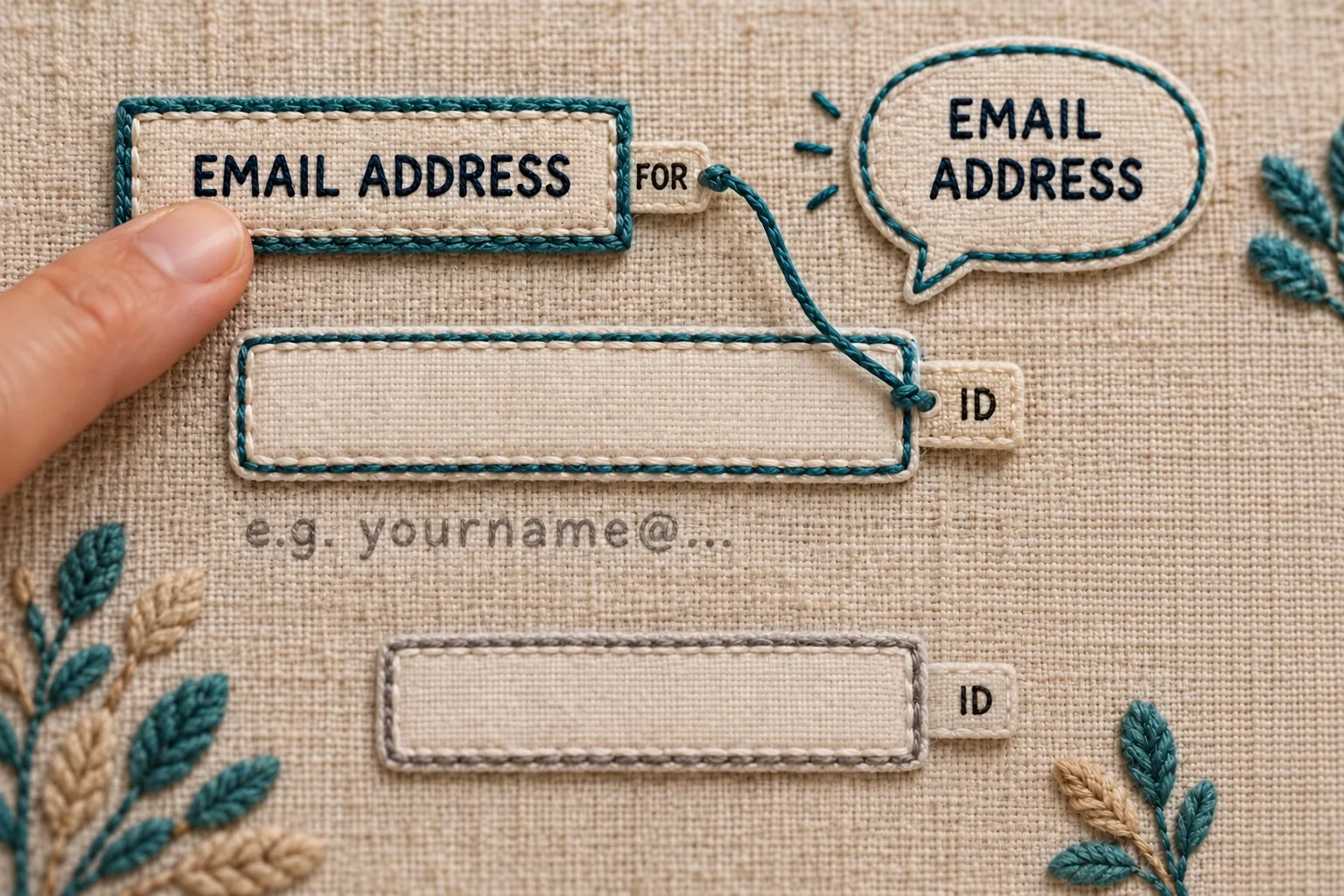
Labels should describe the control's purpose and be associated with it. For an explicit HTML association, the label's for value matches the control's id. A visually adjacent line of text does not, by itself, establish that relationship. Check the actual markup as well as the appearance. Our form labels and accessibility checks guide provides the related checks.
Ask the developer to demonstrate the relevant controls, including text fields, select menus, checkboxes and radio buttons. The business reviewer can confirm the meaning of each question, while the technical reviewer checks how the label is supplied to the control.
Include forms that reuse a component in different places. The contact page, a campaign landing page and a booking step may look similar but behave differently. Record which actual form was tested so a correction to one component is not assumed to prove that every placement is correct.
Check the name presented to assistive technology
A control has a programmatic name, often called its accessible name. Include the visible wording in that name so people using speech input can identify the control by the words they see. Review both the visible label and the name exposed to assistive technology. Our accessible form controls guide provides the related checks.
Ask the accessibility reviewer to compare the visible label with the name actually exposed by the implementation. A control labelled “Email address” should not unexpectedly present an unrelated name such as “Customer identifier”. The reviewer should check the result rather than assume that adding an ARIA attribute improves it.
Keep the reported issue specific. Record the form, field, visible wording, observed programmatic name and expected result. This gives the developer a clear correction to investigate. It is more actionable than a general note that the form “needs accessibility”.
Test the association through actual interaction
Activating an associated HTML label passes focus to its input. Duplicate identifiers can affect which control is associated. Ask the developer to check the identifiers and test the label behaviour on the actual page, including any repeated or dynamically added fields. Our form association and testing guide provides the related checks.
Click or tap a field label during the review and observe the result. Include controls in repeated sections, such as several address fields or a second copy of an enquiry form. If the interaction targets the wrong field, record the case for the developer rather than assuming it is a minor visual issue.
Test with the appropriate assistive technology and keyboard methods through somebody who understands the review. A working mouse click does not establish that every user can complete the form. Keep the label checks within a broader assessment of the interaction, without presenting this short checklist as a complete accessibility audit.
Make instructions distinct and useful
Some fields need more explanation than a short label can provide. A project description might benefit from a hint about the information that helps staff respond. A preferred appointment date might need the relevant format or a description of what selecting a date means.
Write the hint for the actual task. “Tell us the service you need and the main question you would like answered” gives visitors a useful starting point. “Enter valid information” explains very little. Ask the receiving team to check whether the proposed instruction helps obtain the details they genuinely use.
Have the technical reviewer check how supporting instructions are connected and presented. Business wording and implementation need to agree about which field the instruction belongs to. Keep the label concise enough to identify the question while providing necessary detail through a suitable supporting route.
Review required information and choice wording
Agree which fields are essential at the initial enquiry stage. Explain that requirement consistently in the form and ask the implementation team to verify its technical presentation. Avoid collecting information simply because a template includes the field.
Read choice labels as complete decisions. A checkbox saying “Yes” may be difficult to understand if the question is unclear or far away. Prefer wording that makes the person's choice understandable in context, and have the relevant business owner approve any substantive commitment the form asks the visitor to make.
Check the wording of the final action. The button should explain the next step accurately. If the form requests a consultation that staff must review, do not describe the action as though an appointment is immediately confirmed. Labels support the journey when they match the working process behind it.
Include error and review states
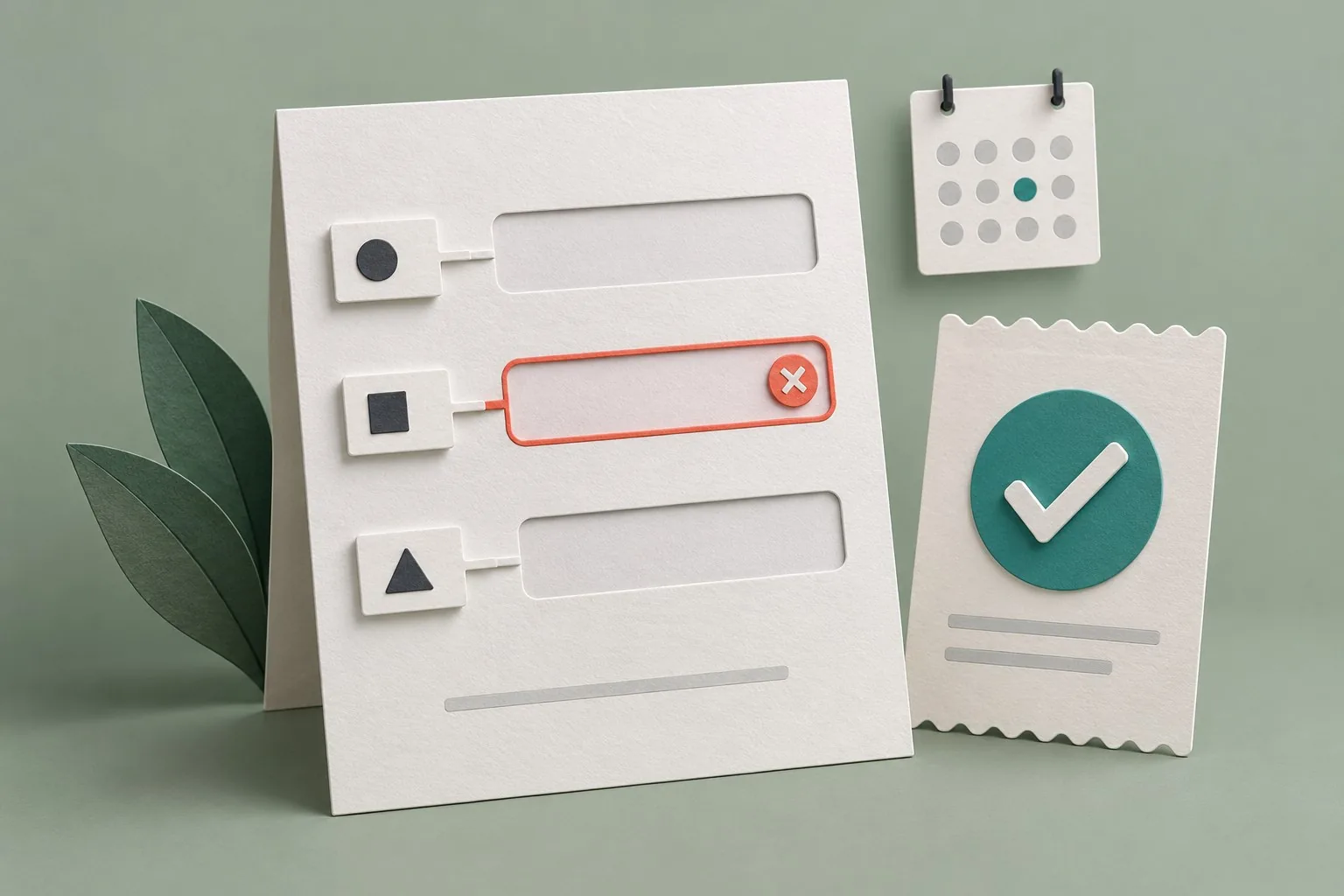
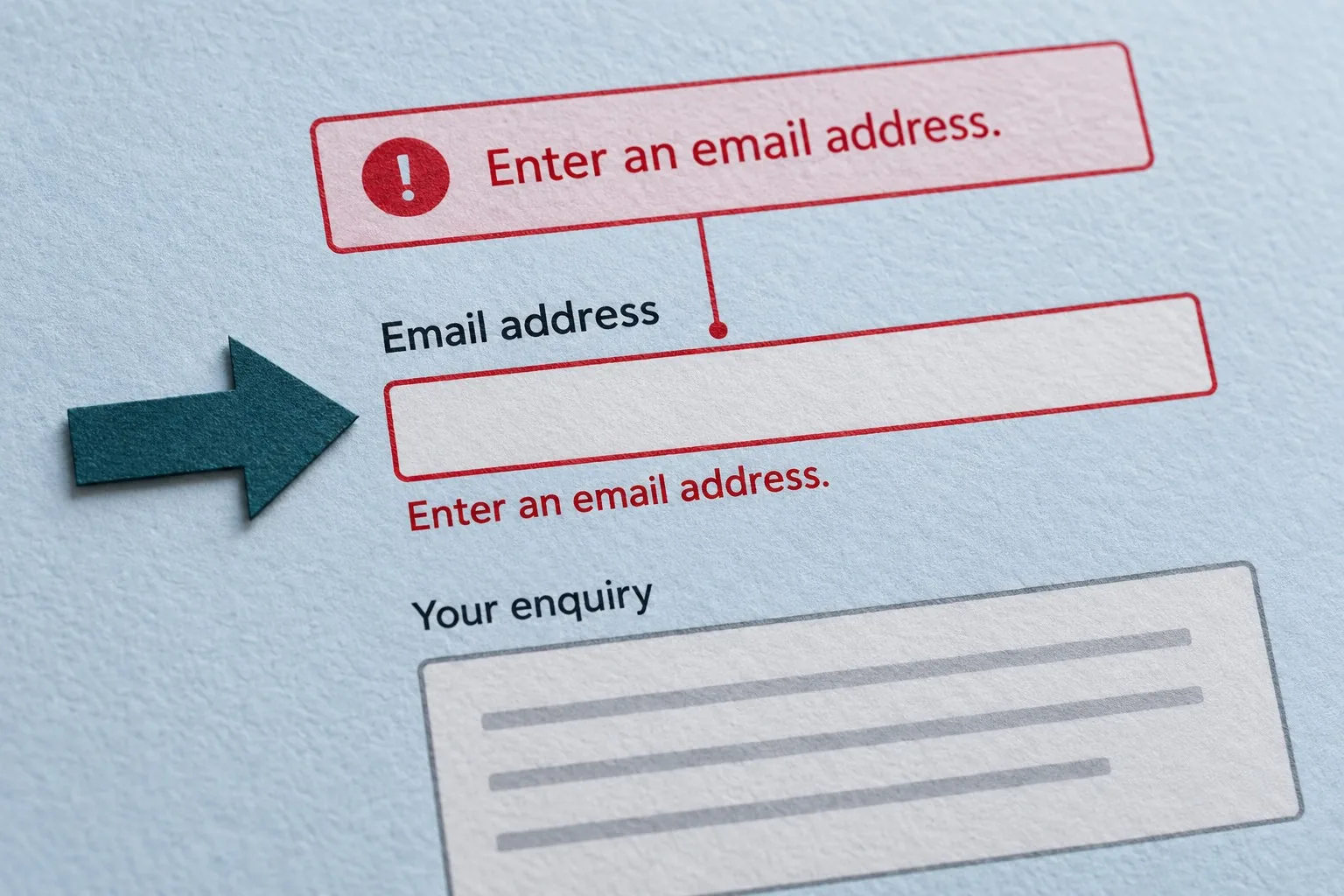
Complete the form with an agreed missing or unsuitable answer and observe what happens. The visitor needs to recognise which field needs attention and understand how to continue. Review the label, supporting instruction and error wording together so they do not give contradictory guidance.
Inspect the form after the error appears. Has the original question remained visible? Can the person understand the answer they entered? If the form offers a final review step, check whether that step uses wording consistent with the questions already answered.
Ask the developer to verify the technical behaviour of those states as part of the wider form review. The label may be correct on the first screen while a dynamically added field or error state introduces a different result. Record each important state actually checked.
Keep a small, actionable review record
List the forms reviewed, their owners and the observed issues. Give each correction a responsible person and a verification step. After a change, repeat the affected checks on the public form, using a controlled submission where appropriate.
Keep approved wording with the form's purpose and receiving workflow. If a service change affects the questions, review the labels and instructions alongside the new requirements. A carefully labelled form can become confusing when its meaning changes without an editorial check.
Giraffe Digital's website design services connect structure, content and enquiry journeys. Accessible label checks support that work by making each question understandable, correctly associated and consistent with the task the business needs customers to complete.
Frequently asked questions
How should we start with the information the business actually needs?
Review each field with the team receiving the enquiry. Ask what the information is used for and what a suitable answer looks like. If staff cannot explain why the field is needed, reconsider the form before polishing its label. A clear question should support a clear next task. Write labels using words the intended audience understands. "What would you like help with?" may be clearer for an initial enquiry than an internal service classification. Where a precise category is necessary, explain the choices rather than expecting visitors to know the organisation's terminology. Keep the question and the answer format compatible. A field labelled "Contact details" does not explain whether you need an email address, a telephone number or both.
How should we ask for the technical label relationship to be verified?
Labels should describe the control's purpose and be associated with it. For an explicit HTML association, the label's for value matches the control's id. A visually adjacent line of text does not, by itself, establish that relationship. Check the actual markup as well as the appearance. Our form labels and accessibility checks guide provides the related checks. Ask the developer to demonstrate the relevant controls, including text fields, select menus, checkboxes and radio buttons. The business reviewer can confirm the meaning of each question, while the technical reviewer checks how the label is supplied to the control. Include forms that reuse a component in different places. The contact page, a campaign landing page and a booking step may look similar but behave differently.
How should we test the association through actual interaction?
Activating an associated HTML label passes focus to its input. Duplicate identifiers can affect which control is associated. Ask the developer to check the identifiers and test the label behaviour on the actual page, including any repeated or dynamically added fields. Our form association and testing guide provides the related checks. Click or tap a field label during the review and observe the result. Include controls in repeated sections, such as several address fields or a second copy of an enquiry form. If the interaction targets the wrong field, record the case for the developer rather than assuming it is a minor visual issue. Test with the appropriate assistive technology and keyboard methods through somebody who understands the review.
How should we review required information and choice wording?
Agree which fields are essential at the initial enquiry stage. Explain that requirement consistently in the form and ask the implementation team to verify its technical presentation. Avoid collecting information simply because a template includes the field. Read choice labels as complete decisions. A checkbox saying "Yes" may be difficult to understand if the question is unclear or far away. Prefer wording that makes the person's choice understandable in context, and have the relevant business owner approve any substantive commitment the form asks the visitor to make. Check the wording of the final action. The button should explain the next step accurately. If the form requests a consultation that staff must review, do not describe the action as though an appointment is immediately confirmed.
How should we keep a small, actionable review record?
List the forms reviewed, their owners and the observed issues. Give each correction a responsible person and a verification step. After a change, repeat the affected checks on the public form, using a controlled submission where appropriate. Keep approved wording with the form's purpose and receiving workflow. If a service change affects the questions, review the labels and instructions alongside the new requirements. A carefully labelled form can become confusing when its meaning changes without an editorial check. Giraffe Digital's website design services connect structure, content and enquiry journeys. Accessible label checks support that work by making each question understandable, correctly associated and consistent with the task the business needs customers to complete.